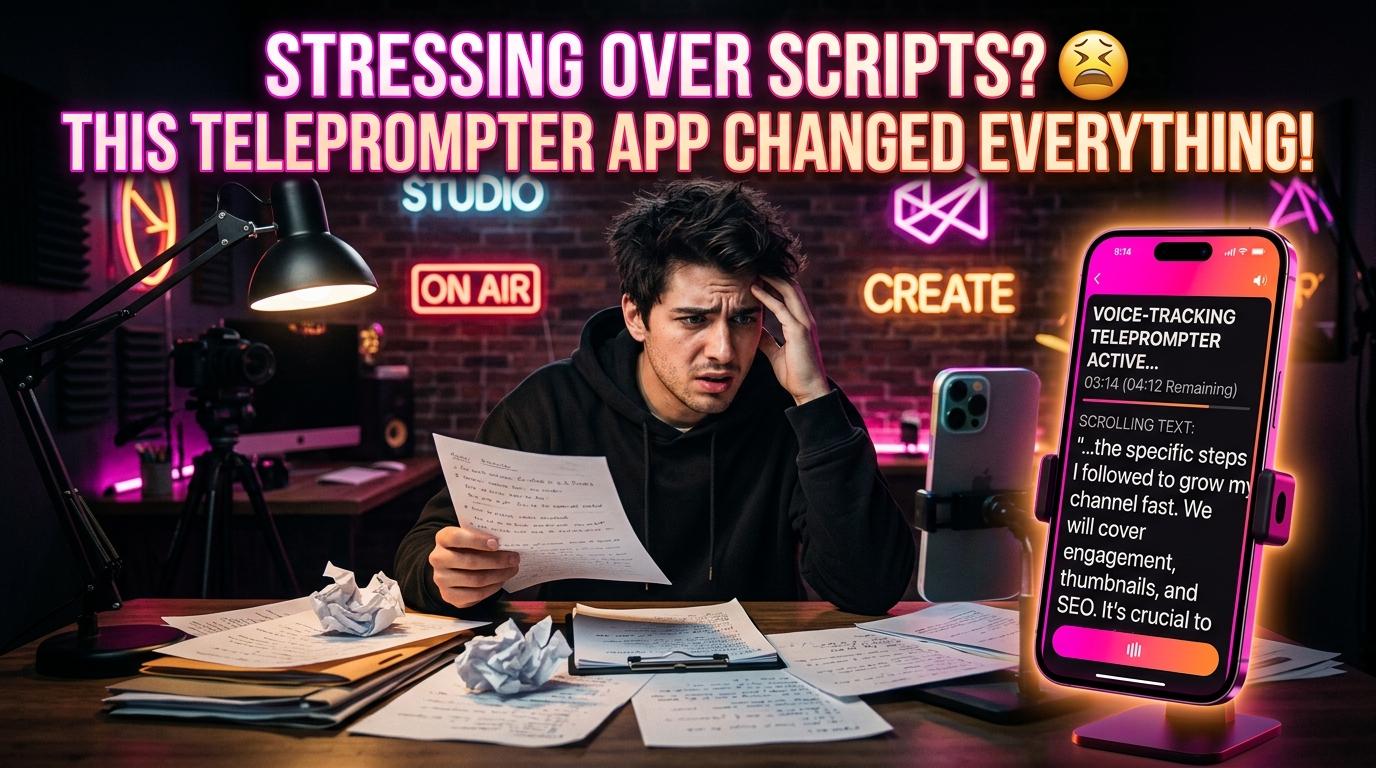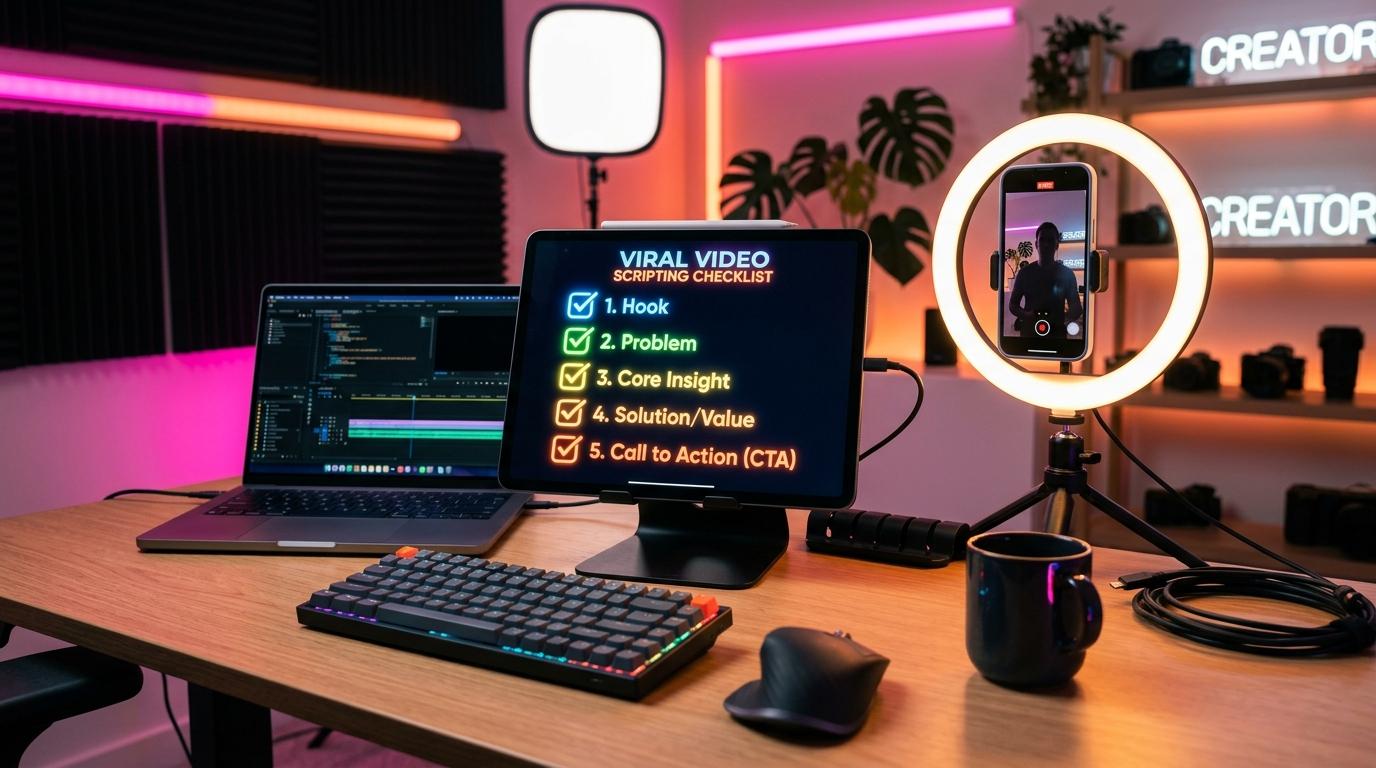
Why "Shifty Eyes" Ruin Video Retention
Eye contact is the foundation of human trust. When someone looks you in the eye while speaking, you perceive them as knowledgeable, honest, and confident.
When creators use a poorly configured teleprompter, viewers immediately spot the telltale signs:
- Eyes darting rapidly left-to-right across the phone screen.
- A fixed, vacant gaze directed 3 inches below the camera lens.
- The uncanny feeling that the speaker is reading off a piece of paper rather than talking to you.
The moment a viewer realizes you are mechanically reading, your connection weakens and watch time plummets. Here is how to configure your teleprompter setup for undetectable, natural eye contact.
The Science of Teleprompter Geometry
Eye movement is determined by two optical factors: reading line width and camera-to-subject distance.
    Wide Text Box (BAD)             Narrow Text Column (GOOD)
[Word 1 . . . . . Word 8]               [Word 1  Word 2]
     <-- Eyes Scan -->                    *Stationary Gaze*
When your text stretches across the full width of an iPad or iPhone screen, your pupils must physically traverse 4 to 6 inches horizontally. The closer your face is to the camera, the more exaggerated that pupil sweep appears to the viewer.
The 4 Golden Rules for Undetectable Reading
Rule 1: The Narrow Column Rule (3 to 4 Words Per Line)
Never stretch your teleprompter across the full screen width. Set your text column margins so that each line contains no more than 3 to 5 words.
At this width, human peripheral vision can register the entire line at a single glance without horizontal pupil movement.
Rule 2: Keep the Active Line Within 1 Inch of the Lens
Your eyes naturally track the active line of text. If that line sits in the middle or bottom of your phone screen, you will look like you are gazing at the viewer's chin.
In TalkTake, the reading overlay is anchored right beneath the front camera lens. As the app follows your voice, the current sentence remains tightly nested near the optical center of the camera.
Rule 3: Increase Distance and Use Slight Zoom
Instead of putting your phone 18 inches from your face at 1x wide lens, move your phone back to 3 to 4 feet and switch your iPhone camera to 2x optical zoom (or 1.5x on recent Pro models).
- Greater distance narrows the viewing angle between the lens and your reading text.
- Any micro-movements of your eyes become virtually invisible to the camera sensor.
Rule 4: Use Voice-Follow, Not Auto-Scroll
With fixed auto-scrolling, you are constantly anticipating where the text will be next. Your eyes dart ahead to preview upcoming words, creating an unnatural, restless flutter.
With voice-tracking in TalkTake, the active word illuminates and advances precisely as you speak it. You read comfortably in the present moment without having to hunt ahead.
The "Soft Gaze" Rehearsal Exercise
Before pressing record, do this 30-second drill:
- Look directly at your phone camera lens.
- Notice that with your peripheral vision, you can still read 2 to 3 lines of text right beneath it.
- Relax your facial muscles and soften your stare. Think of the lens not as a piece of glass, but as a person standing three feet behind it.
When you pair intelligent software with proper camera geometry, nobody will ever guess you are using a teleprompter.
Master your on-camera presence today. Download TalkTake on iOS and deliver flawless, engaging videos with unbreakable eye contact.